From remix link to a clinic website patients can book on
Alveo is a website for a dental clinic: treatments and prices from a Google Sheet, appointment requests that only offer real free times, a cost planner with monthly payments, the team with their next free time, an urgency check and a live emergency line. This guide takes you from your remix link to your own live site. You do not need to write code.
Framer in 5 minutes
| Word | What it means |
|---|---|
| Project | Your website. The remix link puts a copy of Alveo in your Framer account. |
| Pages (left panel) | The list of pages. Click one to open it. Under Design you'll find the Design System page. |
| Sections | Each page is a stack of full-width sections: header, hero, treatments, team, footer and so on. Click one on the canvas to select it. |
| Properties (right panel) | The settings of the selected section: texts, photos, lists, links, the Background tone and the Effect switch. |
| Breakpoints | Each page has Desktop, Tablet and Phone versions. The sections adapt by themselves; change a text on Desktop and check it on Phone. |
| Settings (top-left menu) | Site title, favicon, domain, page SEO, and Code, where the Alveo settings script lives. |
| Publish (top right) | Puts your changes live. Nothing changes on the live site until you publish. |
Get your copy
- Log in to Framer, or create a free account.
- Open your remix link from the order confirmation page or email.
- Choose a workspace if Framer asks. The whole template is copied into your account.
- Rename the project to your clinic's name (click the name at the top of the editor).
Your first afternoon
- Treatments, team and hours in one Google Sheet, then paste the three links in the settings script. 30 to 60 minutes. Prices, the cost planner, the Treatment Finder, the team's free times, booking and "open now" all follow.
- Name, logo, colours and fonts, and time zone and currency. 15 minutes.
- Appointment requests by email: one free key, 5 minutes.
- Team photos, your own before/after cases and the other photos, page by page.
- Urgency Check and emergency numbers, clinic addresses.
- SEO, legal pages, the checklist, and publish.
The settings script
Everything that applies to the whole site is set once, in one place.
- Open Settings > Code.
- Click Alveo settings (edit me).
- Change the values you need. Keep the quotes, commas and semicolons.
- Click Save, then Publish.
window.ALVEO = {
  treatmentsCsv: "",  // link to the Treatments tab, published as CSV
  teamCsv: "",        // link to the Team tab, published as CSV
  hoursCsv: "",       // link to the Hours tab, published as CSV
  web3formsKey: "",   // free key: appointment requests arrive in your inbox
  timeZone: "Europe/Amsterdam",  // for "open now" and free times
  currency: "EUR",
  locale: "en-GB",
  effects: true,      // false = every section stays still
  cursorHints: true   // false = no "Drag" circle next to the cursor
};
An empty link ("") keeps the demo data for that tab, so you can switch one tab at a time.
Name, logo, colours and fonts
Name and logo
Select the Site Header on any page: change Logo text, or upload a Logo image (SVG or PNG with a transparent background, dark colour) and set Logo height. Do the same in the Site Footer (Name or Logo image); the footer is Deep teal, so use a light version of the logo there.
Colours
In the same settings script, under :root. The five --al- section tones are White, Porcelain (--al-page), Mist, Stone and Deep teal (--al-brand, dark sections and solid buttons). Every section has a Background option to pick one; give neighbouring sections different tones. --al-open is the green "open now" dot; --al-alert is the red used only for emergencies.
:root {
  --al-brand: #0B6474;   /* dark sections, solid buttons */
  --al-ink: #0C1E26;     /* text */
  --al-accent: #BDE9EE;  /* soft highlights */
  ...
}
Fonts
Alveo uses Cabinet Grotesk for titles and Switzer for text. To use your own: add the font in Framer first (select any text layer and pick it in the font menu, so it gets loaded on the site), then remove the /* */ around --al-display and --al-text in the settings script and write the font names.
Time zone, currency, numbers
Three lines in the settings script decide how time and money are shown everywhere.
| Setting | What it does |
|---|---|
timeZone | Your clinic's time zone, for example Europe/London, America/New_York, Australia/Sydney. "Open now", the team's next free time and the times offered in booking are all calculated in it, so they are right for a visitor anywhere. |
currency | A three-letter code: EUR, GBP, USD, CHF, AUD. Prices in the sheet are plain numbers; the site adds the symbol. |
locale | How numbers look: en-GB gives €1,350, de-DE gives 1.350 €, en-US gives $1,350. |
Each clinic in the Clinics section also has its own Time zone field, for clinics in different zones.
Treatments, team and hours
One Google Sheet with three tabs runs the prices, the cost planner, the Treatment Finder, the treatment cards, the team's working days, the free times in booking and "open now". Change a price or close for a holiday in the sheet and the site follows within minutes, without publishing.
- Make a Google Sheet with three tabs: Treatments, Team and Hours. Start from the example files: alveo-treatments.csv, alveo-team.csv and alveo-hours.csv. In Google Sheets: File > Import > Upload, one per tab ("Insert new sheet").
- File > Share > Publish to web. Choose the Treatments tab and Comma-separated values (.csv). Publish and copy the link.
- Do the same for the Team tab and the Hours tab.
- Paste the three links in the settings script (
treatmentsCsv,teamCsv,hoursCsv), save and publish.
The first row holds the column names. Columns can be in any order; their names must stay as below.
Treatments tab
| Column | What to write |
|---|---|
| category | Check-ups, Cosmetic, Straightening, Restorative… Categories appear in the order of their first treatment. A category named Urgent is left out of the cost planner and shows the urgent note in booking. |
| name, description | The treatment and one or two plain sentences about it. |
| from, to | The price range as numbers: 390 and 520. Leave to empty for a single "From €95" price. Empty from shows "Ask us". |
| duration | Free text: 45 min, Per tooth, 6–18 months. |
| visits | Free text: 1 visit, 2 visits, Every 8 weeks. |
| finance | "yes" lets patients spread the cost in monthly payments (cost planner and Treatment Finder). |
| popular | "yes" adds a Popular label in the price list. |
| available | "no" hides the treatment without deleting the row. |
Team tab
| Column | What to write |
|---|---|
| name, role | Dr. Sara Visser, Dentist and clinical lead. The name is also how photos are matched. |
| treatments | The treatment names or categories this person does, comma separated (Cosmetic, Check-ups), or all. Booking only offers them for these. |
| days | The days they see patients: mon, tue, wed. |
| start, end | Their own hours, for example 08:30 and 16:00. |
| location | The clinic they work at, written exactly as in the Hours tab. |
| languages, bio | Shown when visitors point at their portrait. |
Hours tab
| Column | What to write |
|---|---|
| location | The clinic's name. With one clinic you can leave it empty. An empty location on a date row (Christmas) applies to every clinic. |
| day | mon, tue, wed, thu, fri, sat, sun, or a date like 2026-12-24 for a special day. A date wins over its weekday. |
| open, close | 08:00 and 18:00. Empty open = closed that day. |
| note | Optional: Late opening, Closed for Christmas. |
Team photos
Names, roles and working days come from the Team tab; photos live in Framer. Select the Team Slices section (home and Team pages) and open Photos: one item per person, with Name written exactly as in the sheet and a Photo. Do the same in the Booking section (Team photos), where small portraits appear next to each name.
- Portraits work best upright (3:4 or 4:5), about 1200 px tall, face in the upper half.
- Someone without a photo still appears, with a plain tone instead.
- "Next free: tomorrow, 08:30" on each portrait is calculated live from the Team and Hours tabs.
Appointment requests
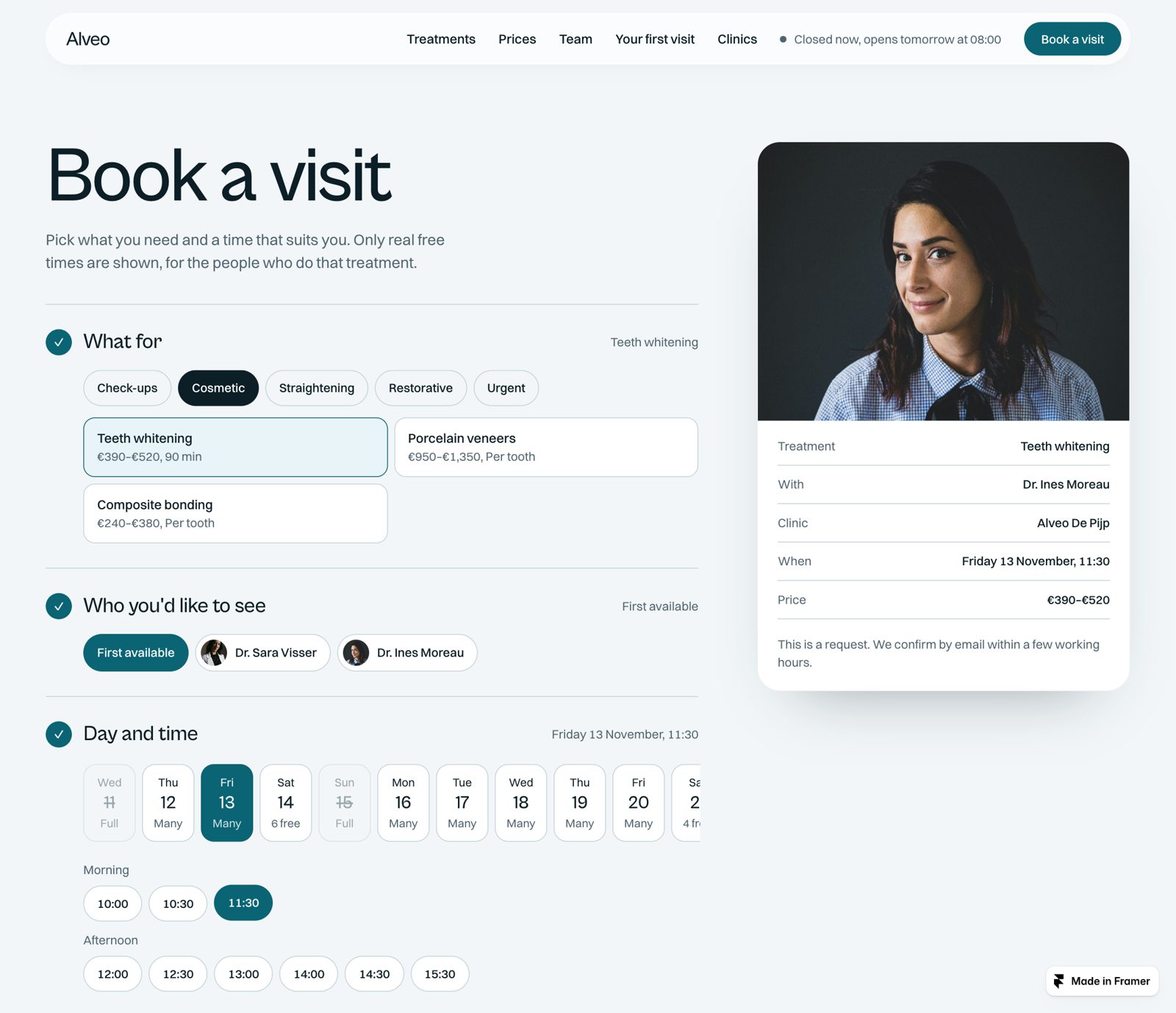
The Book page asks four things: the treatment, who the patient would like to see (or "First available"), a day and time, and their details. It's a request: the clinic confirms each one by email or phone, so it works next to any practice software.
Where the free times come from
A time is offered only if it is inside both the person's own days and hours (Team tab) and the clinic's opening hours for that day (Hours tab), including special days. Days with nothing free are crossed out as "Full". In the section you can set:
- Every: minutes between start times (30).
- Same-day notice: how long before a time it can still be requested today (120 minutes).
- Days shown: how many days ahead (21).
- After sending, Urgent note, Urgent phone: the texts around the form.
Requests by email (Web3Forms, free)
- Go to web3forms.com, enter the email where you want requests, and copy the access key they send you.
- Paste it in the settings script:
web3formsKey: "your-key". Save and publish. - Send yourself a test request from the live site. The email has the treatment, person, clinic, date, time and the patient's details.
Open the form pre-filled
Any button can open the Book page with a treatment and a person already chosen. Write the names exactly as in the sheet, with %20 for spaces:
/book?treatment=Teeth%20whitening
/book?treatment=Dental%20implant&dentist=Dr.%20Marco%20Bianchi
Add a day and a time to open it with that slot already picked (the hero's free times do this):
/book?treatment=New%20patient%20exam&dentist=Dr.%20Sara%20Visser&date=2026-11-12&time=10:30The treatment cards, the Treatment Finder, the team portraits, the hero and the Urgency Check already link this way.
Prices and the cost planner
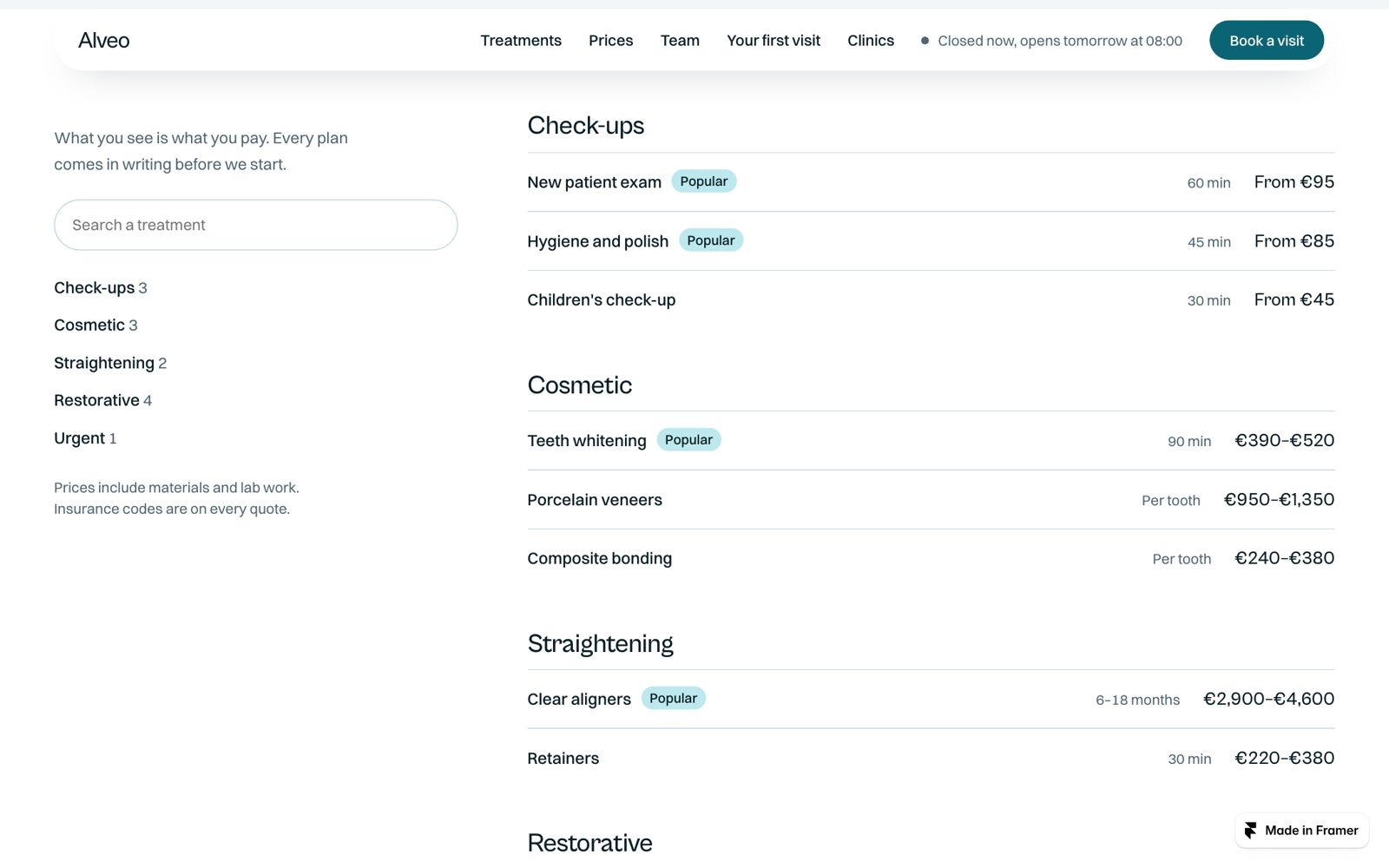
The Prices page lists every treatment from the Treatments tab by category, with a search box, durations, Popular labels and the price range. Change a price in the sheet and it changes here and everywhere else.
The Cost Planner (home and Prices pages) lets patients tick the treatments they're considering. It shows the total as a range and, for treatments with finance = yes, what it comes to each month. The months slider runs from Fewest months to Most months (6 to 24). Ticked at start chooses what is ticked when the page opens (treatment names, comma separated). The numbers roll like a counter when they change.
Treatment Finder
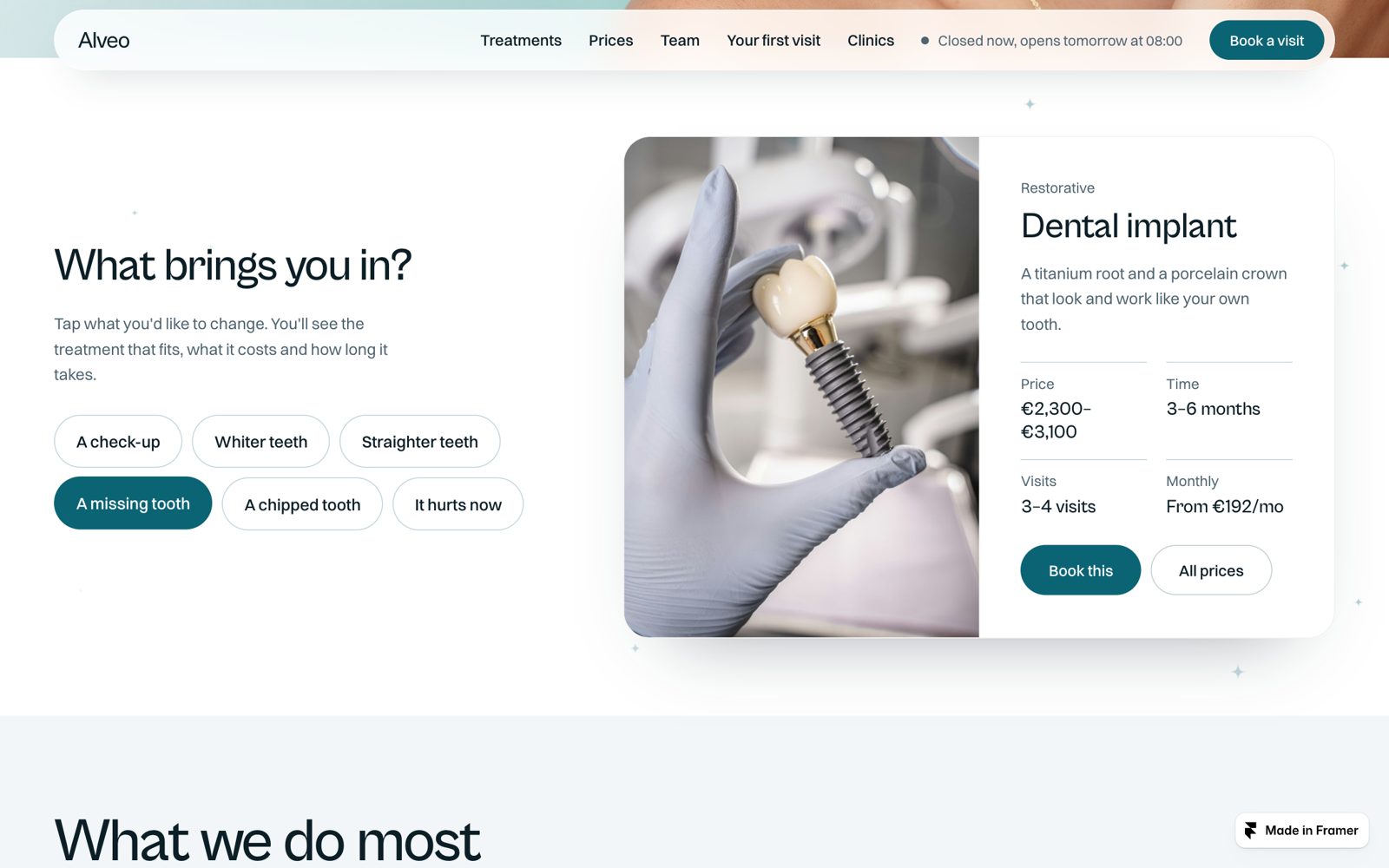
"What brings you in?" shows a few answers as chips. Each answer opens one treatment from your sheet with its price, time, visits and monthly price, plus a booking button. Edit the answers in the section's Answers list:
- Answer: what the patient taps, in their words ("A chipped tooth").
- Treatment: exactly as named in the Treatments tab.
- Text: optional; empty uses the treatment's description.
- Photo: one for each answer.
Months sets the "From €242 a month" figure.
Before / After cases
Visitors grab the line (or its round handle) and drag it across the photo to compare; when the section first appears the line sweeps once on its own. Add cases in Cases: a Name (the chip), a Before and an After photo, a short Text and a Detail such as "6 veneers, 3 visits".
- Use your own patients' photos, only with their written consent. Many countries also limit how results may be advertised; check your professional rules.
- Both photos of a pair must have the same size and framing, or the line will jump.
- The demo pairs are AI-edited stock photos. Replace them, and keep the Small print honest.
Urgency Check
On the Emergencies page, patients tick what's happening and see what to do. The most serious sign they tick decides the answer:
| Answer | Shows |
|---|---|
| Emergency department | The text in Emergency dept. and a button to call the Emergency number. |
| Call now | The Call now text and your Phone. |
| Today or tomorrow | The Today/tomorrow text, your phone and "Book online" (opens an Emergency appointment). |
| Next days | The Next days text and "Book online" (opens a New patient exam). |
- Edit the Signs list: each sign has its text and the Answer it leads to. Have a dentist on your team read them.
- Set the Emergency number for your country: 112 in Europe, 911 in the US and Canada, 999 in the UK, 000 in Australia.
- Set Phone and After hours (shown as "Evenings, weekends and holidays").
Emergency band
The Deep teal band "In pain right now?" knows if the clinic is open. While open it shows When open and calls Phone; when closed it shows When closed and calls the After-hours phone. Leave the after-hours phone empty to always show the main number. Clinic decides whose opening hours are used (as written in the Hours tab). Set the same numbers in the Site Footer (Emergency phone).
Clinics and "open now"
In the Clinics section, add one item per clinic: name, text, photo, street, city, phone, email and Time zone. The name must match the location column in the Hours and Team tabs (or write the sheet's version in Name in hours sheet). Turn on Map for a Google map; Map search is optional.
"Open now, until 18:00" in the header, the hero and the footer comes from the Hours tab. Choose which clinic each one uses: Site Header Location, Hero Clinic, Site Footer Hours of. The hero's Free times card shows the next three free times across the team; each one opens the Book page with that time already picked.
Pages and sections
13 pages: Home, Treatments, Prices, Book, Team, Your first visit, Emergencies, Clinics, Privacy, Cookies, Terms, 404, and the Design System page. Every section is independent: add, remove or reorder them on any page. Each has a Background tone, an Effect switch and, on most, a Moving background: rising bubbles, light through water, a floss thread, sparkles, a dot wave, a soft aurora or slow ripples. They move on their own (never under the cursor), stay faint behind the text and pause when the section is off screen. Pick None to turn one off.
| Section | What it does |
|---|---|
| Site Header | Floating glass bar: links, live "open now", booking button, logo text or image; menu on phones. |
| Rinse Hero | A sharp photo that behaves like clear water: the cursor (or a finger) leaves soft ripples and turquoise light plays over it. Works with any photo. Focus across / down keeps the right part in view on phones; Smile across / down is where the smile is in your photo (drops land there when nobody moves the mouse). The card shows "open now" and the next three free times; each one opens Book with that time picked. |
| Treatment Finder | "What brings you in?": answers that open a treatment with its price. |
| Stack Cards | Treatments one at a time while the section stays on screen: the photo arrives from one side and the text from the other, they join into a card, then the card rises away as the next pair arrives. Text and prices come from the sheet; you pick the treatment and photo. |
| Before / After | Cases with a line you drag across the photo. |
| Cost Planner | Tick treatments, see the range and the monthly amount. |
| Team Slices | Portrait slices that open on hover, with the next free time. |
| First Visit | Four steps that light up while the line of a tooth draws itself on scroll; when it is drawn, the tooth gets a friendly face that blinks and follows the cursor with its eyes. Turn off Tooth face for just the line. |
| Patient Words | Two rows of quotes moving in opposite directions. Use real reviews only, with permission. |
| Price List, Booking, Urgency Check, Emergency Band, Clinics | See their own chapters above. |
| Page Intro, Feature, FAQ, Call To Action | Page title with photo; photo with text and facts; questions; big title with a round button that follows the cursor. |
| Legal Text, Site Footer | Legal pages; address, live hours, links and emergency phone. |
Turning effects off
- One section: select it and turn off Effect. The Rinse Hero then shows the photo with no ripples.
- A moving background: set the section's Moving background to None.
- The whole site: set
effects: falsein the settings script. - The "Drag" circle next to the cursor:
cursorHints: false.
Visitors who ask their device for reduced motion get still sections automatically.
Framer's AI agent
Alveo is an Agent Template. It includes instructions for Framer's built-in agent (Settings > Skills):
- default is always applied: page order, the five background tones, colours and fonts from the settings script, type sizes, spacing, and plain, honest writing with no medical promises.
/treatments-and-teamexplains what changes in the sheet (treatments, prices, the team's days, opening hours) and what changes in Framer (photos, addresses, finder answers, cases, emergency numbers)./new-pagebuilds new pages from the template's sections, with booking buttons pre-filled.
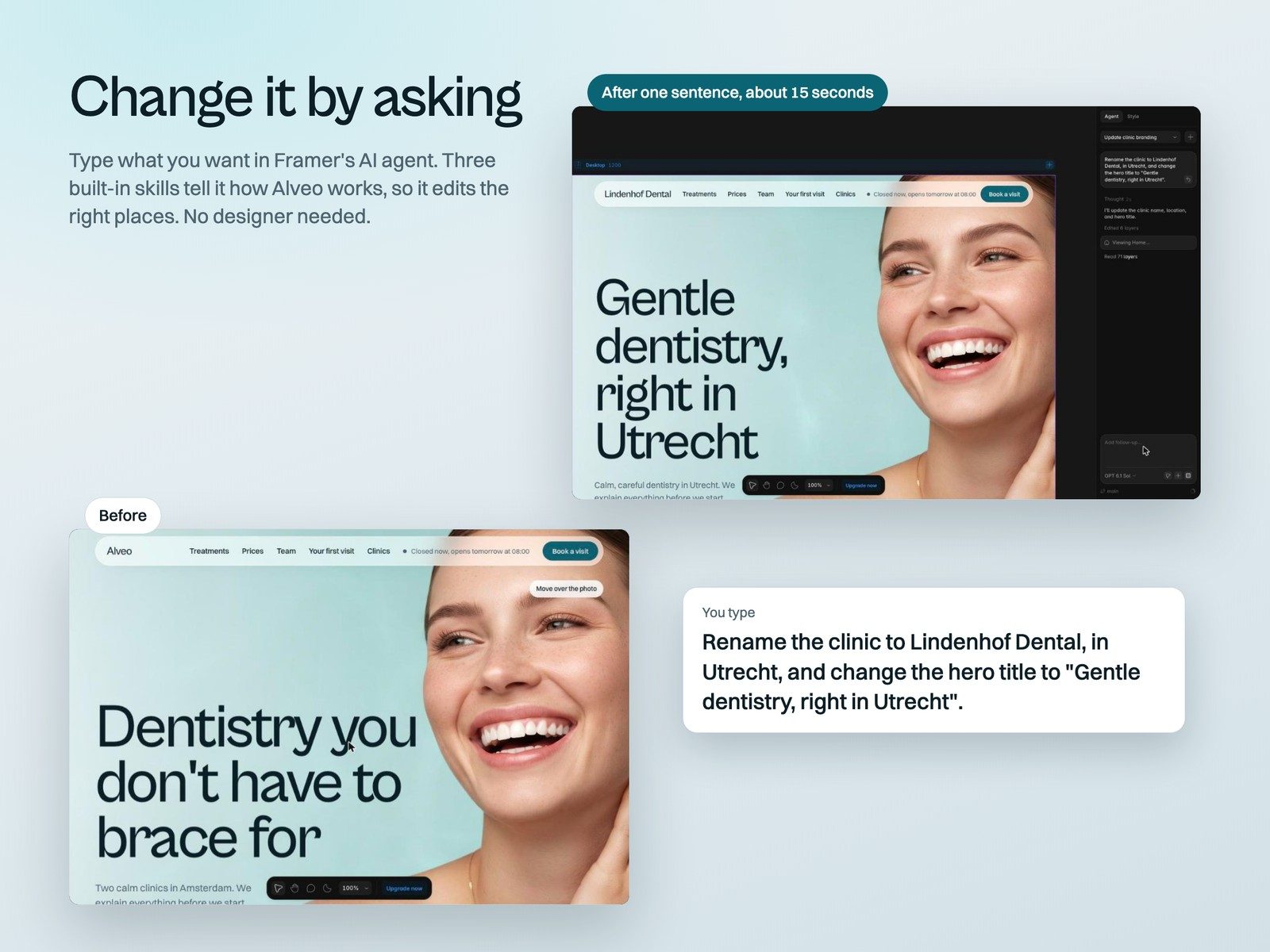
The Design System page (Pages > Design > Design System) shows every colour, type size, button and section with a note on when to use it. Write requests in plain words, for example "Add a page for children's dentistry with an intro, the FAQ and a booking button for Children's check-up".
SEO and Google
- Settings > General: site title, description, favicon and social image.
- Settings > Pages: a title and description for each page, for example "Teeth whitening in Leeds, from £350".
- After publishing on your domain, add it to Google Search Console and submit
/sitemap.xml. Keep your Google Business Profile hours the same as your Hours tab.
Legal pages
Privacy, Cookies and Terms contain sample text. Replace it with your own (or your lawyer's) before you launch. Appointment requests contain health information, so your privacy page should say how you handle it. The demo site sets no tracking cookies; if you add analytics or a chat widget, list their cookies.
Publish on your own domain
- Choose a Framer site plan for the project (needed for a custom domain and to remove the Framer badge).
- Settings > Domains > add your domain and follow the DNS steps for your registrar.
- Publish. The site is live on your domain once DNS updates (minutes to a few hours).
Launch checklist
- Treatments, Team and Hours links in the settings script; prices checked.
- Time zone, currency and locale set; "open now" correct at your clinic.
- Web3Forms key added and one test request received.
- Name, logo, colours; team photos matched by name; demo photos replaced.
- Your own before/after cases, with consent, or the section removed.
- Urgency signs read by a dentist; emergency number for your country; phone and after-hours numbers in Urgency Check, Emergency band, Booking and Footer.
- Addresses, phones and emails in Clinics and Footer; Patient Words replaced with real reviews.
- Legal pages replaced; SEO titles and social image set.
- Checked on a phone; published on your domain.
Troubleshooting
The site still shows the demo treatments or team
Check that the link is between the quotes in the settings script, that the tab is published as CSV (not as a web page), that the first row has the column names, and that you published the site. The editor canvas always shows the demo data.
Nobody is offered for a treatment
The treatments column of the Team tab must contain that treatment's name, its category, or "all", spelled as in the Treatments tab.
A person has no free times
Check their days, start and end, and that their location is written exactly as in the Hours tab. Their hours must overlap the clinic's opening hours on those days.
"Open now" is wrong
Check timeZone in the settings script, the clinic name in the Hours tab and in the section's Location / Clinic field, and that times are written as 08:00.
A photo is missing on the team
The Name next to the photo must match the name in the Team tab exactly, including "Dr.".
The form says "This is the demo, so nothing was sent"
The Web3Forms key is missing from the settings script, or the site was not published after adding it.
Support, licence and updates
Support
Email fiddweb@gmail.com. We answer within 48 hours on working days. Tell us which page and which device, and add a screenshot if you can. We help with everything in the template. For Framer itself (account, billing, domains) Framer's own support is faster.
Licence
One purchase covers one website, for yourself or for one client. You may change the template freely. You may not resell, share or redistribute the template or the remix link, alone or as part of another template.
Updates
Updates are free. When we improve Alveo, we email you. A remix is a copy, so your project does not change by itself: to use an update, open the remix link again and copy the parts you want into your project.
No section matches your search.