From remix link to a website that sells your homes
Larchwood is a website for a residential development: buildings, levels, homes, plans, prices, availability, payments and visits. This guide takes you from your remix link to a live site for your own project. You do not need to write code.
Framer in 5 minutes
| Word | What it means |
|---|---|
| Project | Your website. The remix link puts a copy of Larchwood in your Framer account. |
| Pages (left panel) | The list of pages. Click one to open it. |
| Sections | Each page is a stack of full-width sections: header, hero, finder, calculator, footer and so on. Click one on the canvas to select it. |
| Properties (right panel) | The settings of the selected section: texts, photos, lists, links. This is where you change almost everything. |
| Breakpoints | Each page has Desktop, Tablet and Phone versions. The sections adapt by themselves; change a text on Desktop and check it on Phone. |
| Settings (top-left menu) | Site title, favicon, domain, the SEO of each page, and Code, where the Larchwood settings script lives. |
| Publish (top right) | Puts your changes live. Nothing changes on the live site until you publish. |
Get your copy
- Log in to Framer, or create a free account.
- Open your remix link from the order confirmation page or email.
- Choose a workspace if Framer asks. The whole template is copied into your account.
- Rename the project to your development's name (project menu, top left).
Your first afternoon
- Your price list in Google Sheets, then paste its link in the settings script. 30 to 60 minutes. Buildings, levels, homes, prices and availability appear everywhere at once.
- Colours and fonts, 10 minutes.
- Floor plans and home plans: export them as pictures from your architect's drawings, 20 minutes.
- Visit requests: one free key, 5 minutes.
- Name, menu and footer, then page texts and photos, page by page.
- Your banks in the mortgage calculator.
- SEO, legal pages, the checklist, and publish.
The settings script
Four things are set once for the whole site, in one place: your colours, your fonts, your price list and your form key.
- Open Settings > Code.
- Click Larchwood settings (edit me).
- Change the values you need. Keep the quotes and the semicolons.
- Click Save, then Publish.
<style>
:root {
--lw-dark: #1F2E27;      /* dark sections, buttons */
--lw-page: #ECEEEA;      /* page background */
...
--lw-serif: "Larch Serif", Georgia, serif;
--lw-sans: "Larch Sans", system-ui, sans-serif;
}
</style>
<script>
window.LARCHWOOD = {
priceListCsv: "",        /* your price list link */
web3formsKey: ""         /* your form key */
}
</script>Colours and fonts
Every section reads its colours and fonts from the settings script, so one change restyles the whole site.
| Setting | Where it shows |
|---|---|
--lw-dark | Dark sections, main buttons, the footer |
--lw-dark-2 | Hover on dark |
--lw-page | Page background |
--lw-surface | Cards and empty picture frames |
--lw-text, --lw-muted | Main text and secondary text |
--lw-accent | Small warm accents |
--lw-highlight | The highlighted words in Statement sections |
--lw-available, --lw-reserved, --lw-sold | Status dots |
--lw-serif | Headings and big numbers |
--lw-sans | Everything else |
Using your own fonts
- Add the font to the project: select any text on the canvas, open the font list and pick it (Google and Fontshare fonts are built in), or upload your own under Assets > Fonts.
- Write its exact name in the settings script, with a fallback:
--lw-serif: "Playfair Display", Georgia, serif; - Publish and check the live site.
--lw-dark is white, so keep that colour dark. Check that --lw-text on --lw-page is easy to read.Pages and sections
| Page | What it does |
|---|---|
| Home | The story of the project and the main ways in: finder, home types, payments, visit. |
| /residences | The Apartment Finder on its own page. |
| /home | One page for every home, from the price list (details). |
| /location, /life, /design, /developer | Story pages: neighbourhood, shared spaces, finishes, the company. |
| /progress | Construction status and the photo diary. |
| /payment-plans | Developer payment stages, mortgage calculator, questions. |
| /parking | Parking spaces and storage rooms. |
| /contact | Visit form, sales office, questions. |
| /privacy, /cookies, /terms, 404 | Legal pages and the page for broken links. |
Every section is independent. To remove one, select it and press Delete. To add one, copy it from another page and paste it where you want it. To reorder, drag it in the Layers panel.
Photos
Select a section and replace each photo in its properties. Use renders or photos of your own project, landscape, at least 2400 px wide for full-screen sections.
- Light Hero: two photos of the same view, for example morning and evening. They swap with a curtain effect.
- Pull Back: a close photo (a balcony) and a wide one (the whole project). The page zooms from one to the other.
- Build Diary: one photo per site visit, ideally always from the same spot.
The price list
All homes come from one Google Sheet. Update a price or mark a home as sold in the sheet, and the site follows within a few minutes. No CMS, no re-publishing.
Columns
First row = column names, in any order. One row per home.
| Column | Example | Notes |
|---|---|---|
| code | B-3.06 | Unique. Used in links. |
| building | B | Any name: A, North, Tower 1. |
| floor | 3 | A number. 0 = ground, -1 = basement. |
| rooms | 3 | Number of rooms. |
| type | 3-room home | Free text, e.g. Studio, Penthouse, Duplex. |
| area | 76 | Living area in m². |
| outdoor | 12 | Balcony, terrace or garden in m². |
| orientation | East | Free text. Becomes a filter. |
| view | Park | Free text. |
| price | 195000 | Numbers only. With or without VAT, as set in the components. |
| status | available | available, reserved or sold. |
| plan | T6 | Optional. Layout code, to match a home plan. |
| level | Mezzanine | Optional. A name for the level instead of "Floor 3". |
| note | Morning sun, quiet | Optional. One line shown on the home. |
| image | https://… | Optional. A link to this home's plan picture. |
| corner | yes | Optional. yes or no. |
Connect it
- In Google Sheets: File > Share > Publish to web.
- Choose your sheet and Comma-separated values (.csv), then Publish.
- Copy the link and paste it in the settings script as
priceListCsv: "https://docs.google.com/…". - Save, Publish, and open the live site.
Live counts in texts
In the Header availability text and in Statement sections you can write these words in curly brackets. They are replaced with live numbers from the price list.
| Write | Shows |
|---|---|
{available} | Homes still available |
{reserved} | Reserved homes |
{sold} | Sold homes |
{total} | All homes |
{buildings} | Number of buildings |
Example: {available} homes still available.
Apartment Finder
Two ways to find a home. On the building: masterplan photo, then a building, then a level, then a home. By what you need: filters for rooms, facing, level, budget and size. Favourites, compare (up to 3), share links and a VAT switch are built in.
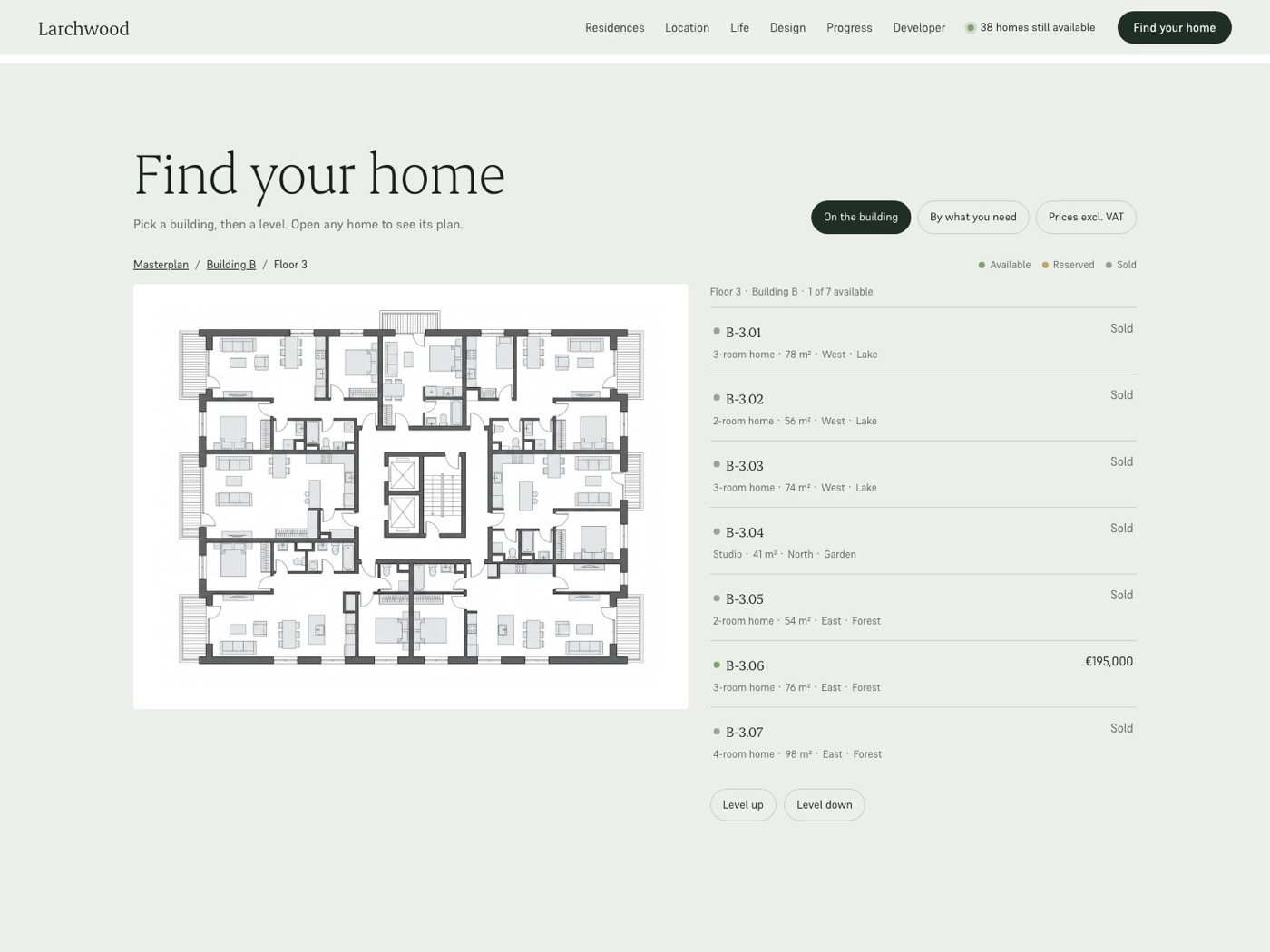
Properties
- Masterplan photo and Building photo: any render of the whole project and of one building.
- Buildings (optional): rename a building or give it its own photo. Buildings themselves come from the price list.
- Level plans and Home plans: see plans.
- Level names: "Ground floor", "Floor {n}", and an optional name for the top level.
- Currency, VAT %, whether your prices include VAT, and the VAT switch.
- Home page link (
/home?unit={code}) and Enquiry link (/contact?unit={code}).
Links can open the finder in a given state: /residences?building=B, ?building=B&floor=3, ?unit=B-3.06, ?mode=needs&rooms=3.
Floor plans and home plans
Plans are pictures, so they fit any building shape. Export them from your architect's drawings as PNG or JPG, on a white background.
Level plans
In the Apartment Finder, Level plans > add an item: Building, Level number, Plan picture. Leave Building or Level empty to use one picture for many:
| Building | Level | Used for |
|---|---|---|
| B | 3 | Only level 3 of building B |
| (empty) | 0 | The ground floor of every building |
| B | (empty) | Every level of building B |
| (empty) | (empty) | Everything else (one typical floor) |
The most specific match wins. A level without any plan shows only the list of homes.
Home plans
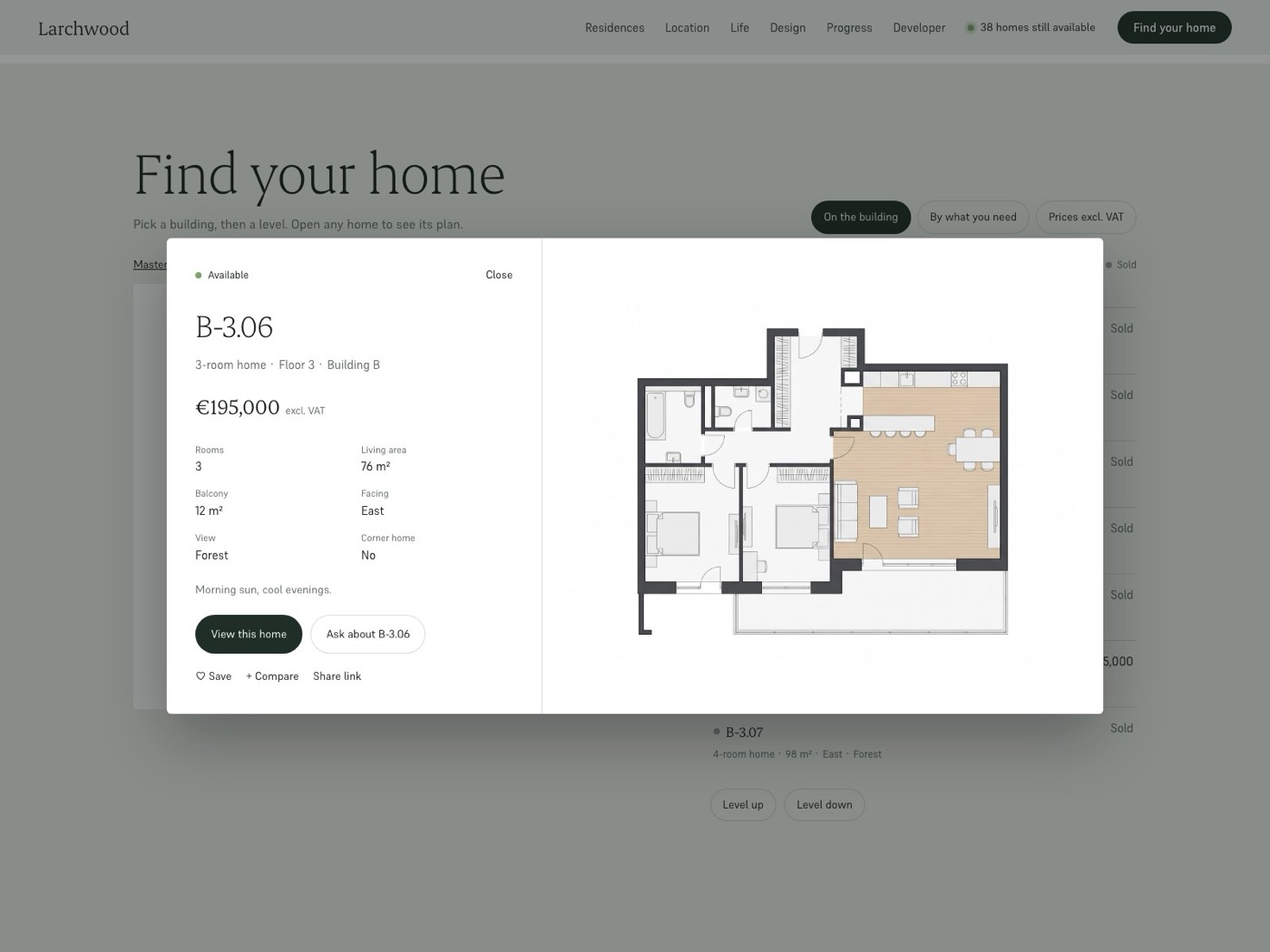
Home plans > add an item: Match and Plan picture. Match can be the plan column value (e.g. T6), the type (e.g. Penthouse) or the number of rooms (e.g. 2). A home looks for its plan code first, then its type, then its rooms. Or put a link in the price list's image column.
A page for every home
The page /home shows any home from the price list: /home?unit=B-3.06. There is nothing to create per home. It has the plan, price with and without VAT, price per m², facts, buttons to book a visit and calculate payments, a printable sheet, and similar homes still available.
In the editor it shows the home in Preview home, because the editor has no ?unit= in the link.
Home types
A sideways strip of layouts (Studio, Two rooms, …). Each card has a photo, a name, a size range and a Match: a number of rooms, or penthouse. The "from" price and the number of homes left are read live from the price list.
Mortgage calculator
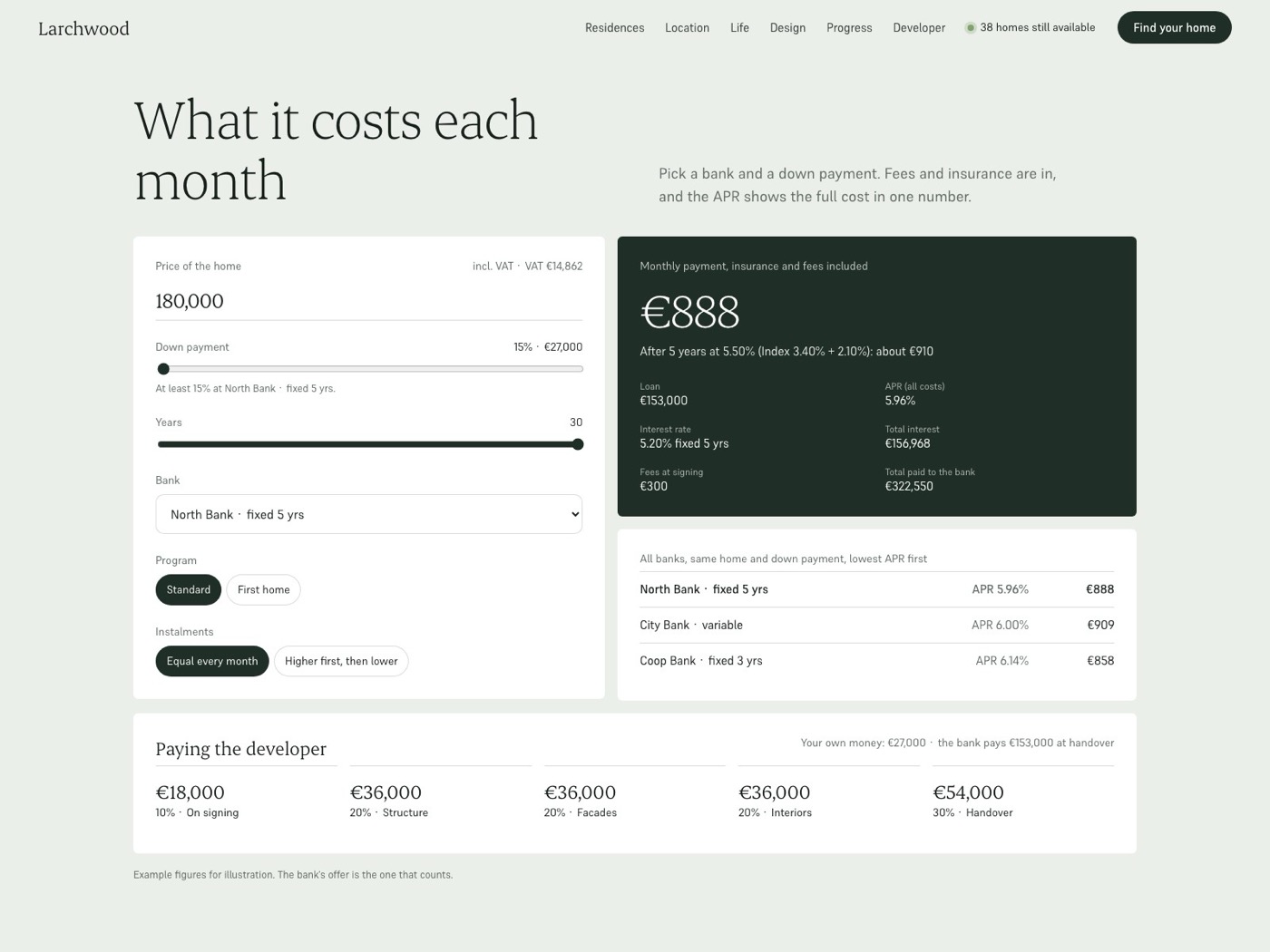
On /payment-plans. Opened with ?unit=CODE it starts from that home's price.
Banks
| Field | Meaning |
|---|---|
| Fixed rate % and Fixed for (yrs) | A fixed period. Set years to 0 for a variable loan. |
| Index name, Index %, Bank margin % | The variable rate = index + margin (e.g. EURIBOR 2.4 + 1.9). Used after the fixed period. |
| Fees at signing, Fee % of loan | One-time costs: file, valuation, notary, or a percentage. |
| Monthly fee | Account or admin fee each month. |
| Life ins. %/month | Percent of the remaining loan, each month. |
| Home ins. / year | Property insurance per year. |
| Min down %, Max years | The bank's limits. |
Programs (e.g. first-home schemes): name, minimum down payment, how much lower the rate is, maximum years, and a note. Developer stages: percent and when; they should add up to 100%.
The APR includes interest, fees and insurance: it is the yearly rate at which the money received (loan minus fees at signing) equals everything paid back. Equal or declining instalments can be switched on.
Payment stages
The developer's plan as big percentage steps (e.g. 10% on signing, 30% on handover). If the steps do not add up to 100%, a red note appears in the editor only.
Parking and storage
Parking Picker (page /parking): one card per kind (parking space, EV space, storage room…), with photo, price, how many in total and how many are left. "Ask for one" opens the contact page with that item filled in. Update the "Left" numbers when you sell.
Construction progress
- Progress Status: one bar per building or phase, with the stage and percent done. The big number is the average. Set "Updated" and "Handover".
- Build Diary: one entry per site visit with date, stage, one line and a photo. Visitors drag through time.
Location and map
Places (on /location and /contact): write your address exactly as in Google Maps; the map needs no key. Groups (Everyday, Schools, Getting around…) each list places, one per line, as Name | time. "Directions" opens Google Maps to your address.
Visit requests by email
Visit forms send requests to your inbox through Web3Forms, free for up to 250 requests a month at the time of writing.
- Go to web3forms.com, enter the email that should receive requests, and copy the Access Key they send you.
- Paste it in the settings script:
web3formsKey: "your-key". Save and Publish. - Send a test request from the live site and check your inbox (and spam).
When a visitor comes from a home (?unit=B-3.06), the form fills in that home by itself. Without a key the form shows a demo message and sends nothing.
Framer's AI agent
Larchwood includes instructions for Framer's built-in agent (Settings > Skills > default). When you ask the agent to add a section or change a page, it knows how the template works: sections, the price list, plans, live counts and the style rules. Write your requests in plain words, for example "Add a FAQ section about parking to the Location page".
SEO and Google
- Settings > General: site title, description, favicon and social image.
- Settings > Pages: a title and description for each page.
- After publishing on your domain, add it to Google Search Console and submit
/sitemap.xml.
Legal pages
/privacy, /cookies and /terms contain sample text only. Replace it with the text from your lawyer (Legal Text section: title, date, sections). If you add analytics or tracking, you may need a cookie banner; Framer offers one in Settings.
Publish on your own domain
- Choose a Framer site plan for the project (needed for a custom domain and to remove the Framer badge).
- Settings > Domains > add your domain and follow the DNS steps for your registrar.
- Publish. The site is live on your domain once DNS updates (minutes to a few hours).
Launch checklist
- Price list connected; prices, statuses and VAT checked on the live site.
- Level plans and home plans for every layout.
- Colours and fonts set; text easy to read.
- Visit form tested: the request reached your inbox.
- Your banks in the mortgage calculator, with the small print.
- Header, footer, address, phone and email are yours.
- Every photo is of your project, with Alt text.
- Demo texts replaced on every page (search for "Larchwood", "lake", "forest").
- Legal pages replaced.
- Site and page titles, descriptions and social image.
- Checked on a phone.
Troubleshooting
The site still shows the demo homes
Check that the price list link is between the quotes in the settings script, that the sheet is published as CSV (not as a web page), and that you published the site. Remember the editor canvas always shows demo homes.
A home is missing
Every row needs a code. Check that the column names in the first row are spelled as in the table above.
A plan does not show
Check the Match value: it must equal the plan code, the type or the number of rooms exactly (capital letters do not matter).
The form says "Demo"
The Web3Forms key is missing from the settings script, or the site was not published after adding it.
My colours did not change
Colours from the settings script show on the published site and in Preview, not on the editor canvas. Check that each line ends with a semicolon.
Support, licence and updates
Support
Email fiddweb@gmail.com. We answer within 48 hours on working days. Tell us which page and which device, and add a screenshot if you can. We help with everything in the template. For Framer itself (account, billing, domains) Framer's own support is faster.
Licence
One purchase covers one website, for yourself or for one client. You may change the template freely. You may not resell, share or redistribute the template or the remix link, alone or as part of another template.
Updates
Updates are free. When we improve Larchwood, we email you. A remix is a copy, so your project does not change by itself: to use an update, open the remix link again and copy the parts you want into your project.
No section matches your search.